Description
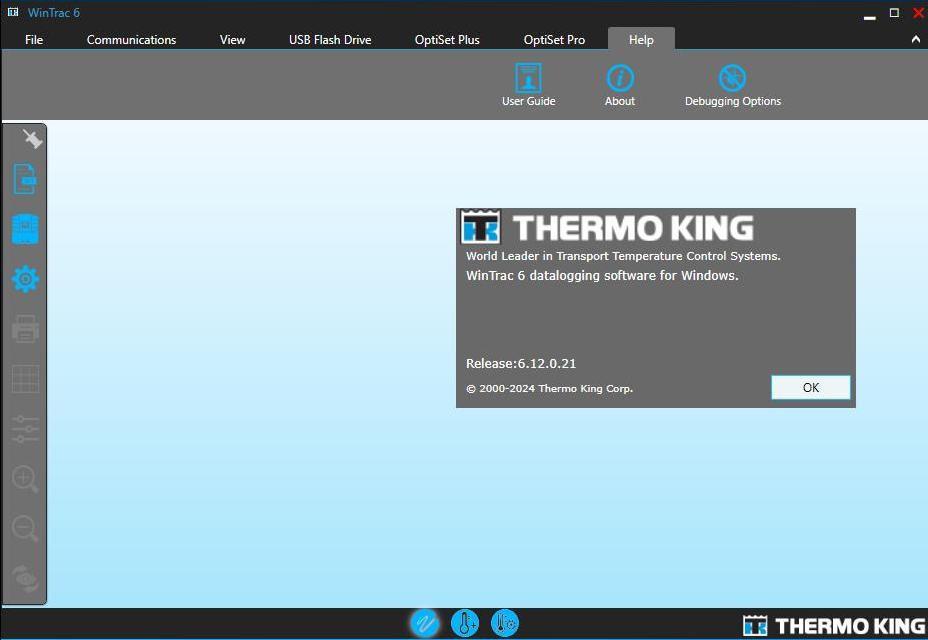
Thermo King WinTrac software is the easiest way to manage your data storage and display requirements for Thermo King data logging units.
Thermo King Wintrac 6.12.0.21 Features:
Version:6.12.0.21
Date:2025
Level:Engineering
Size:392MB
OS Require:Windows 10 and Windows 11 64 bits
Language: English
Thermo King Wintrac 6.12.0.21 Functions:
Quick performance analysis
Innovative graphic interface
Automaticmanagement
Fast and flexible display of graphic reports
Integral capabilities
Quick configuration
Thermo King Wintrac 6.12.0.21 Support Models:
Thermo King DAS
DAS-IV
DMS
DRS
AccuTRAC
TranScan
CargoWatch
ServiceWatch
Thermo King MPIV
MPV
MPVI
MPCR
MPD
MPA
MPA+
VPRS/DSR
TTMT
TSD
SR-2/SR-3
Multi-Temp
New Features in WinTrac 5.3:
—————————-
Updates added for support of OS+ 6.0.
Support added for “Battery Health Monitor” with Alarm 159.
Support added for SR2 C040, SR3 D030 and HMI 7580.
Added Chinese to language selection.
New Features in WinTrac 5.2:
—————————-
Added support for flashload of new 8 MB HMI (using 7570 software).
Updated HMI Mix and Match Language selection capability.
Added support for D006 (Rail Ready) and D010 SR-3 software.
Updates added for support of OS+ 5.0.
New Features in WinTrac 5.1:
—————————-
Updated to enable use of USB Flashload Device (UFD) on SR3 platform.
Updated to address the release of: D005 controller software and 6560 HMI software,
New Features in WinTrac 5.0:
—————————-
support for new SR3 controller platform, D000 controller software and 6550 HMI software.
Changes to support OS+ 4.0 and SB 210.
———-
SECTION 2:
———-
File location information:
————————–
The standard / default area for the WinTrac application is as follows:
For Windows XP, c:\Program Files\Thermo King\WinTrac 5
For Windows 7 (32 bit), c:\Program Files\Thermo King\WinTrac 5
For Windows 7 (64 bit),c:\Program Files( X86 )\Thermo King\WinTrac 5
For Windows 8 (64 bit),c:\Program Files( X86 )\Thermo King\WinTrac 5
The standard / default area for the WinTrac database is as follows:
For Windows XP, c:\Documents and Settings\All Users\Application Data\Thermo King\WintracDB
For Windows 7, C:\Users\Public\AppData\Thermo King\WintracDB
For Windows 8, C:\Users\Public\AppData\Thermo King\WintracDB
This is for a typical installation and may differ based on each individual PC and/or install.
———-
SECTION 3:
———-
User Access Levels in WinTrac 5
———————————
WinTrac 5 allows you to set up different User Access levels for WinTrac software.
These levels give the user access to different features and functions, depending on the level.
There are currently 2 different levels of User Access Defined:
Standard User Access and Technician Level Access
Standard User Access
———————
User has full access to the Thermo King Devices. User
also gains access to a special “TOOLS” menu allowing access to features such as Sensor Calibration, Flashload,OptiSet functions, Pass-through, and operating mode setup.
These features are only available on certain TK devices such as the DAS datalogger. This is the normal dealer level and the default installation mode.
Technician Level Access
———————–
This level is available by selecting it from the ‘TOOLS’ menu.
It gives greater access to more details when a more in depth analysis of the data is needed.
Changing User Access Level in Windows
————————————–
The Tools menu allows you to perform tasks such as calibrating sensors, flashloading Thermo King devices with new versions of software, setting up modes on various Thermo King devices, etc. NOTE: Only certain devices such as the DAS datalogger will support these features.
Launch WinTrac software.
Press “Ctrl” + “Shift” + “T” keys simultaneously.
You will see the “Tools” menu appear in the menu bar.
NOTE: If the “Tools Menu” does not appear, the user access level may be set to Read Only Access (level 1).
If this is the case, the user access level must be
changed to Standard User (level 7). See previous instructions to change this. You can hide the “Tools” menu again by pressing “Ctrl” + “Shift” + “T” keys simultaneously.
———-
SECTION 4:
———-
Known issues in WinTrac
———————————
1. Flashload of TTMT DINCAB HMI with 65XX software is not blocked.
The user will need to be aware that it is possible to load 6520 or other standard HMI software into the DIN CAB HMI.
There is no current way to automatically block this action.The DIN CAB HMI should only be flashloaded with 75XX software.
2. Service Modification files do not handle negative temperatures correctly.
![[03.2026] Online 4.58.22/Offline 4.58.22 for ISTA+](https://www.autoepccatalog.com/wp-content/uploads/2020/09/111-241x181.jpg)


Reviews
There are no reviews yet.